
Downloading One Image From Session
Instructions
- Open the Session.
- Click on Download in the Actions box at the top right.
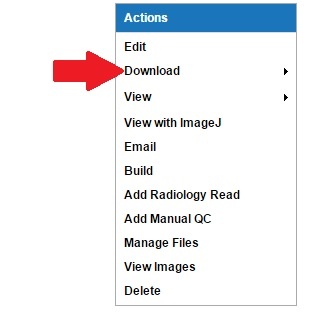
- Choose to download organized in directories, as one large zip file or as an xml file.
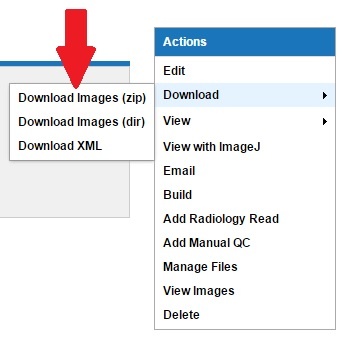
a. Choosing Download Images (zip) will take you to a page to select what individual files you want to download as shown below.
- You can expand each + to show more detail and be able to select/deselect.
- Choose the scans to be downloaded.
- Uncheck any unwanted types or formats: Assessments, Additional Resources, and Misc Files. Usually Snapshots are not needed.
NOTE: Unchecking these will speed up download time and reduce file size.
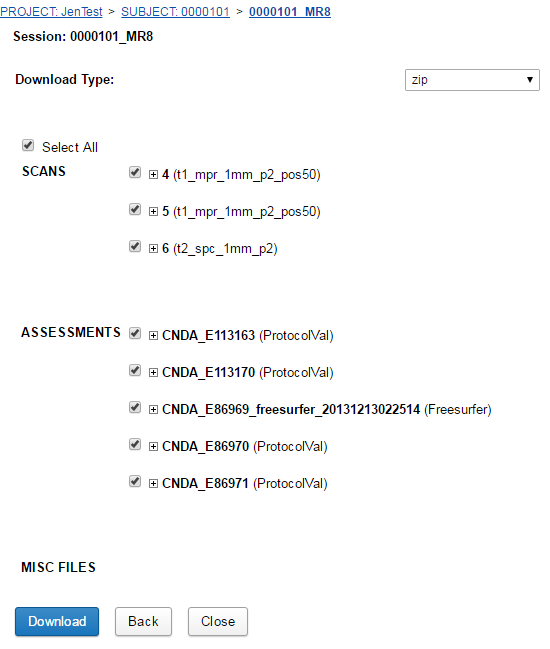
- Once done selecting your files, click Download.
- It will then download your zip file.
b. Choosing Download Images (dir) will take you to a page to select what files and formats you want to download as shown below. There are three steps in this process.
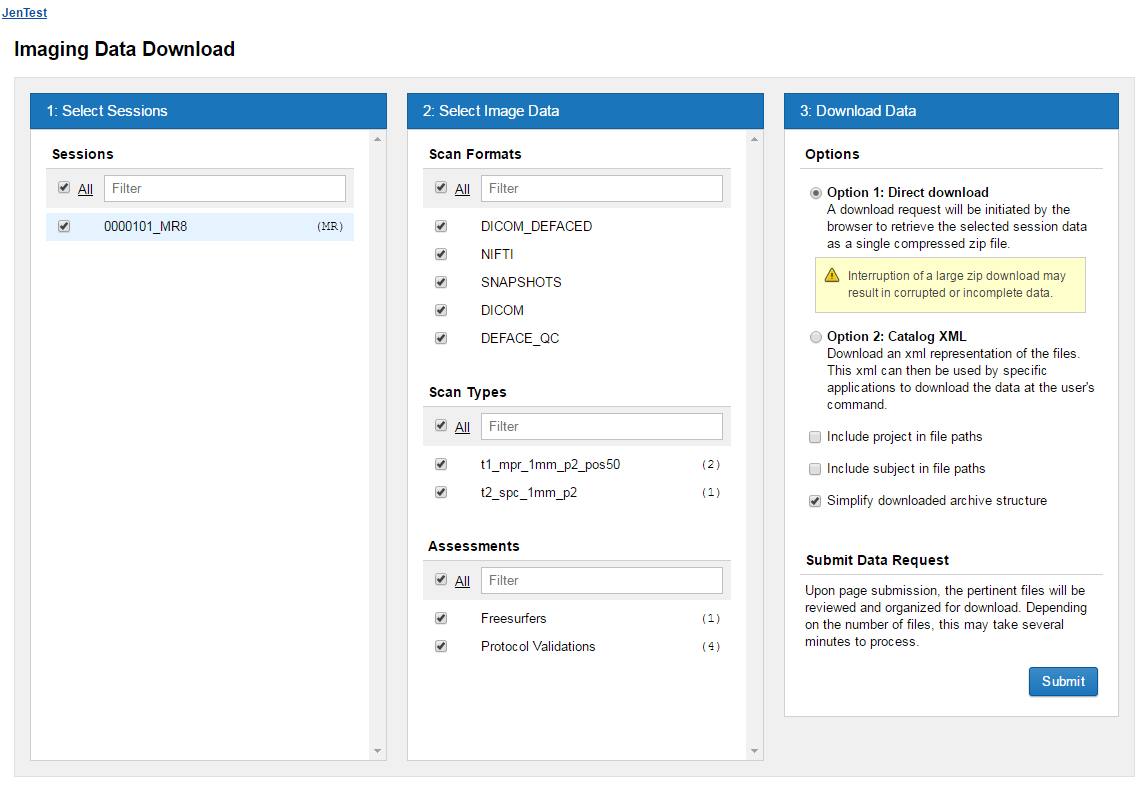
- Select the Session.
- Select Image Data.
- Choose how to download the data.
- Click Submit.
- You will receive a pop up message to confirm downloading the files. Click Download.
- It will then download the zip file.